































































Hướng dẫn tạo ảnh mô hình 3D bằng AI
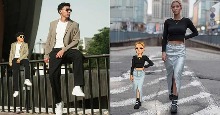
Mô hình đồ chơi 3D bằng AI là sự kết hợp giữa công nghệ trí tuệ nhân tạo và thiết kế đồ họa, cho phép tạo ra những hình ảnh hoặc bản thiết kế đồ chơi mang tính trực quan, sống động như thật. Đặc biệt, dạo gần đây, chúng ta cũng thường bắt gặp hình ảnh mô hình để bàn 3D trông y như mô hình thật đặt trên bàn làm việc, tuy nhiên bạn không biết làm thế nào để có thể tạo ảnh theo trend này?
Chính vì vậy, để giúp cho mọi người có thể tạo ảnh mô hình 3D bằng AI cũng không cần sử dụng các phần mềm phức tạp, bất kỳ ai cũng có thể tạo ra những figure "ảo" nhưng lại chân thật đến bất ngờ. Thì hôm nay Download.com.vn sẽ mời các bạn tham khảo bài viết hướng dẫn tạo ảnh mô hình 3D bằng AI.
Một số prompt tạo ảnh mô hình đồ chơi 3D
Mẫu 1:
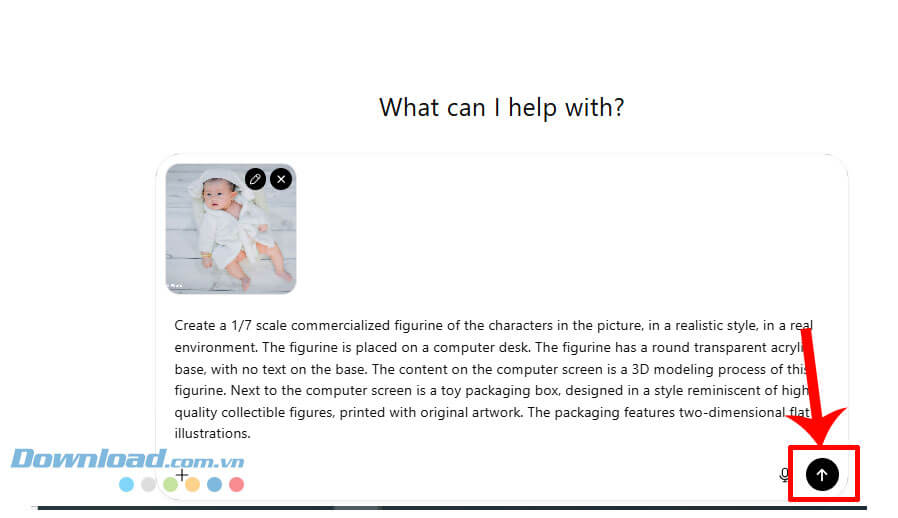
Create a 1/7 scale commercialized figurine of the characters in the picture, in a realistic style, in a real environment. The figurine is placed on a computer desk. The figurine has a round transparent acrylic base, with no text on the base. The content on the computer screen is a 3D modeling process of this figurine. Next to the computer screen is a toy packaging box, designed in a style reminiscent of high-quality collectible figures, printed with original artwork. The packaging features two-dimensional flat illustrations.
Mẫu 2:
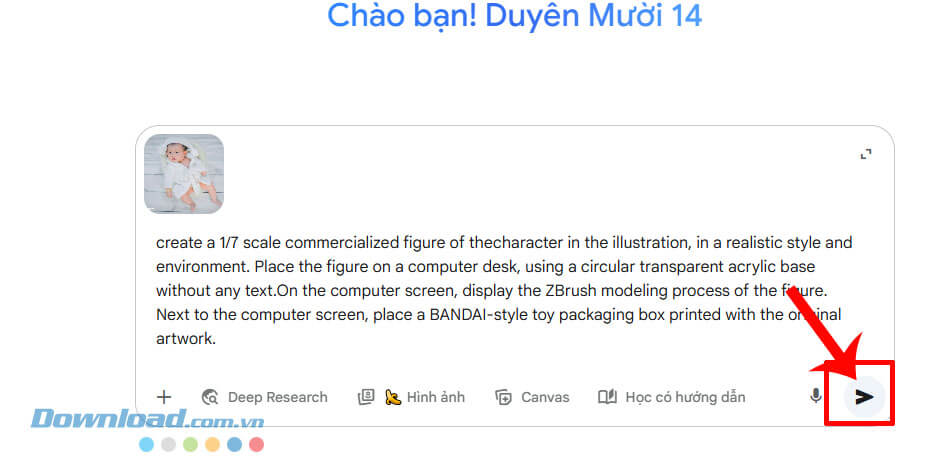
create a 1/7 scale commercialized figure of thecharacter in the illustration, in a realistic style and environment. Place the figure on a computer desk, using a circular transparent acrylic base without any text.On the computer screen, display the ZBrush modeling process of the figure. Next to the computer screen, place a BANDAI-style toy packaging box printed with the original artwork.
Mẫu 3:
Use the nano-banana model to create a 1/7 scale commercialized figure of the character in the illustration, in a realistic style and environment. Place the figure on a computer desk, using a circular transparent acrylic base without any text. On the computer screen, display the ZBrush modeling process of the figure. Next to the computer screen, place a [ Tên Bạn ] - style toy packaging box printed with the original artwork.
Mẫu 4:
Use the nano-banana model to create a 1/7 scale commercialized figure of the character in the illustration, in a realistic style and environment. Place the figure on a computer desk, using a circular transparent acrylic base without any text. On the desk, show a MacBook with its screen displaying the ZBrush modeling process of the same figure. Next to the MacBook, place a [ Tên Bạn ] -style toy packaging box printed with the original artwork. Cinematic lighting, high-detail textures, realistic materials, shallow depth of field, professional photography look.
Mẫu 5:
Use the nano-banana model to create a 1/7 scale commercialized figure of the character in the illustration, in a realistic style and environment. Place the figure on a computer desk, using a circular transparent acrylic base without any text. On the desk, display a high-resolution gaming monitor showing the ZBrush modeling process of the same figure. Next to the screen, include a PlayStation 5 console with its controller placed nearby. Scatter multiple stacks of US dollar bills and shiny 9999 gold bars across the desk surface. Also place a [ Tên Bạn ] -style toy packaging box printed with the original artwork beside the figure. Set the entire scene inside a stylish gaming room, with RGB lighting, gaming chair, LED strips, and high-tech accessories. The atmosphere should feel luxurious, modern, and dynamic — with cinematic lighting, shallow depth of field, high-detail textures, and photorealistic materials.
Hướng dẫn thiết kế ảnh mô hình đồ chơi 3D trên Google Gemini
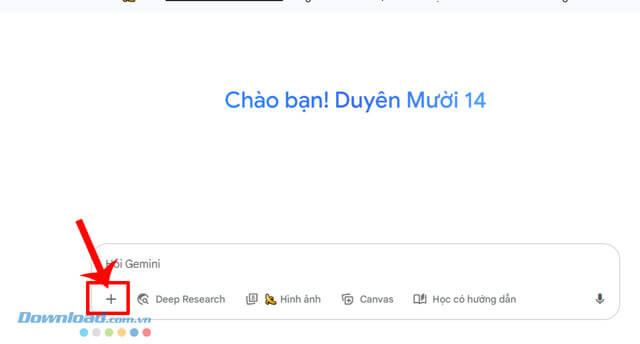
Bước 1: Tại trang chủ của Google Gemini, click chuột vào biểu tượng dấu “+”.
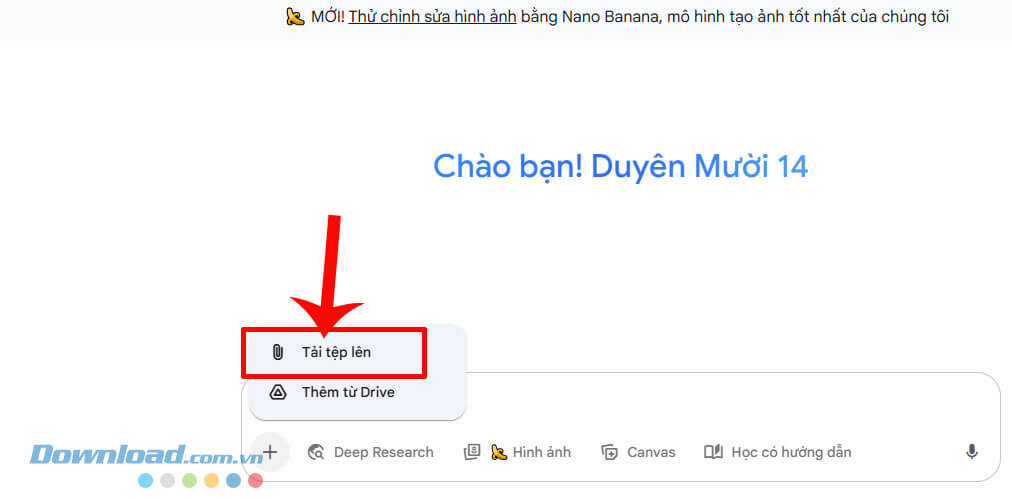
Bước 2: Tiếp theo, các bạn nhấn vào mục Tải tệp lên.
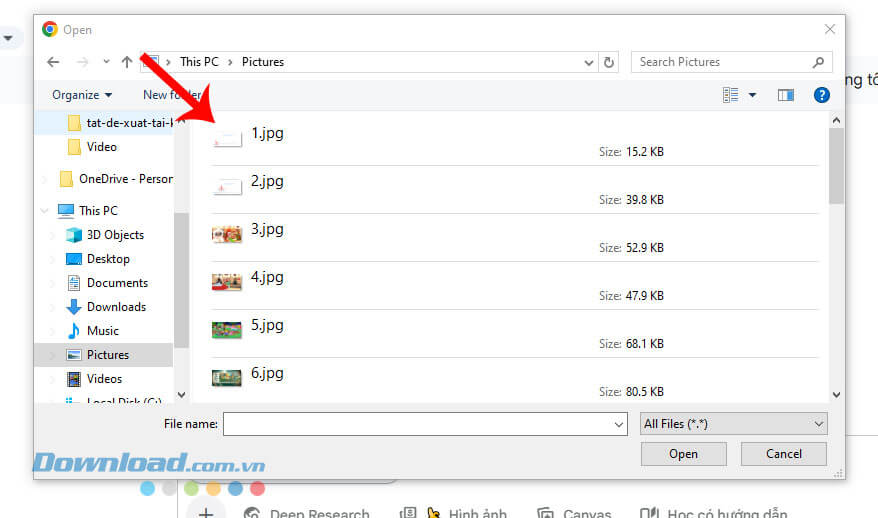
Bước 3: Sau đó, lựa chọn một hình ảnh bất kỳ trên thiết bị mà bạn muốn chuyển thành mô hình 3D.
Bước 4: Nhập đoạn prompt bất kỳ ở phía trên vào dưới vào ô chat, rồi click chuột vào biểu tượng nút Gửi.
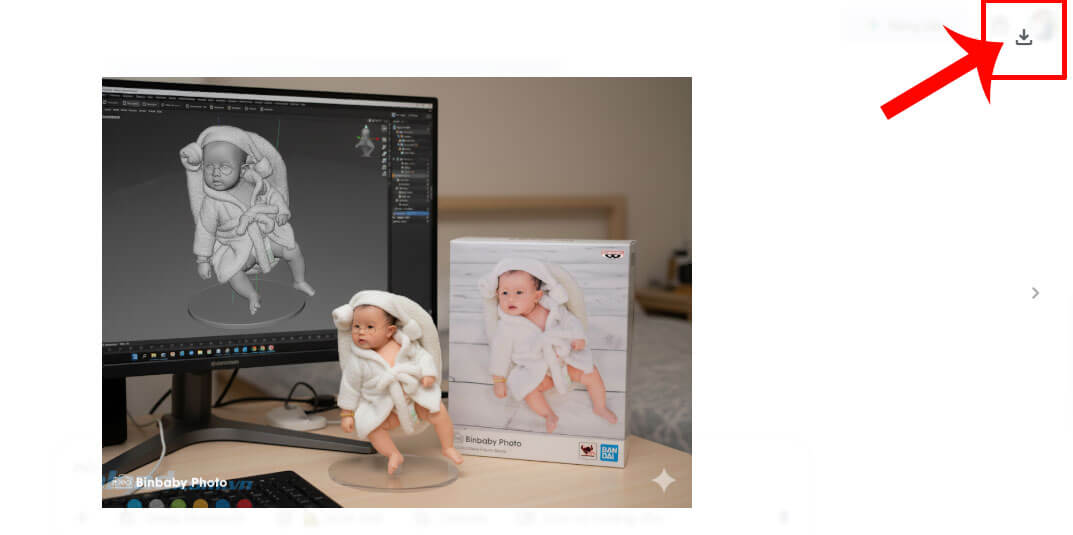
Bước 5: Đợi một lát cho quá trình tạo ảnh mô hình được hoàn tất, sau đó nhấp chuột vào biểu tượng mũi tên đi xuống để tải ảnh về.
Hướng dẫn tạo ảnh mô hình đồ chơi 3D trên ChatGPT
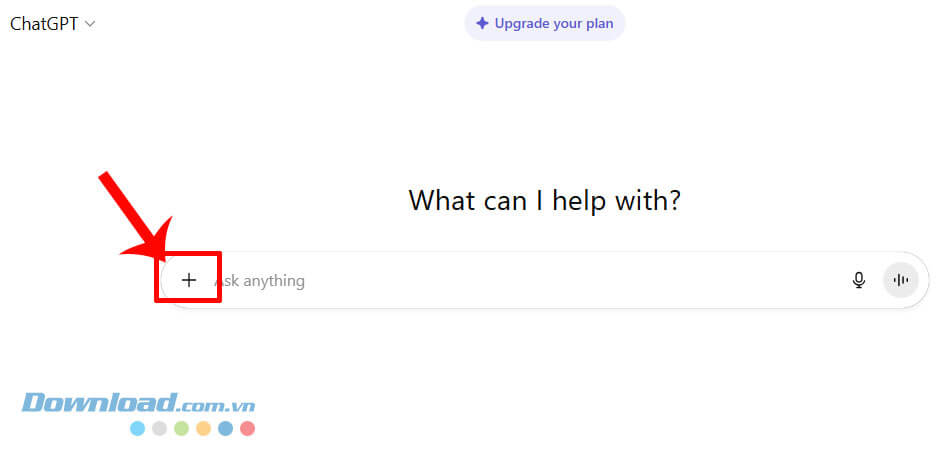
Bước 1: Trước tiên, ở trang chủ của ChatGPT, nhấn vào biểu tượng dấu “+”.
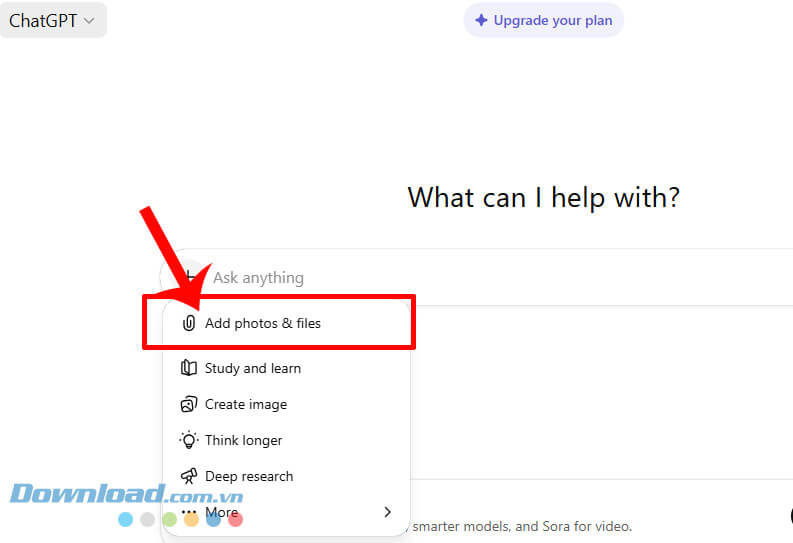
Bước 2: Chúng ta sẽ click chuột vào mục Add photos & files.
Bước 3: Khi này, cửa sổ Open xuất hiện, chọn một hình ảnh bất kỳ trên máy tính của mình.
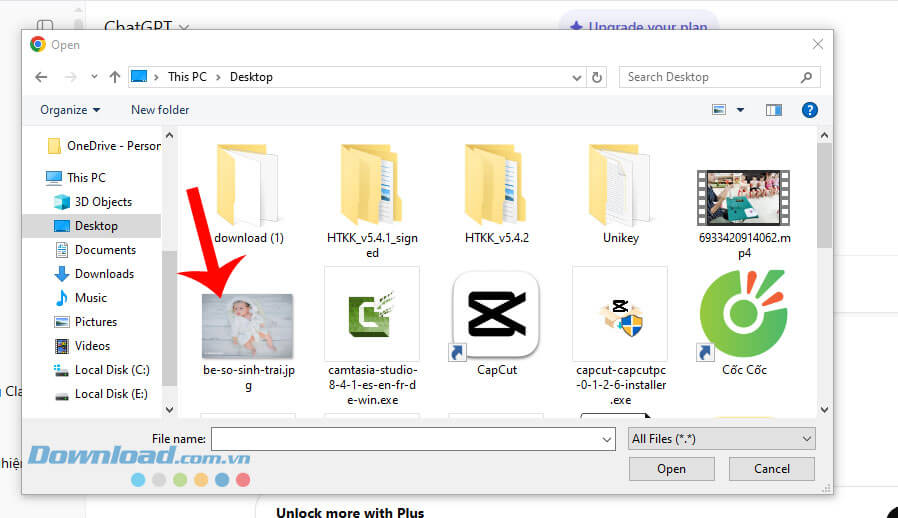
Bước 4: Tiếp theo, các bạn sẽ nhập một Prompt phía bên trên, rồi nhấp chuột vào biểu tượng mũi tên đi lên.
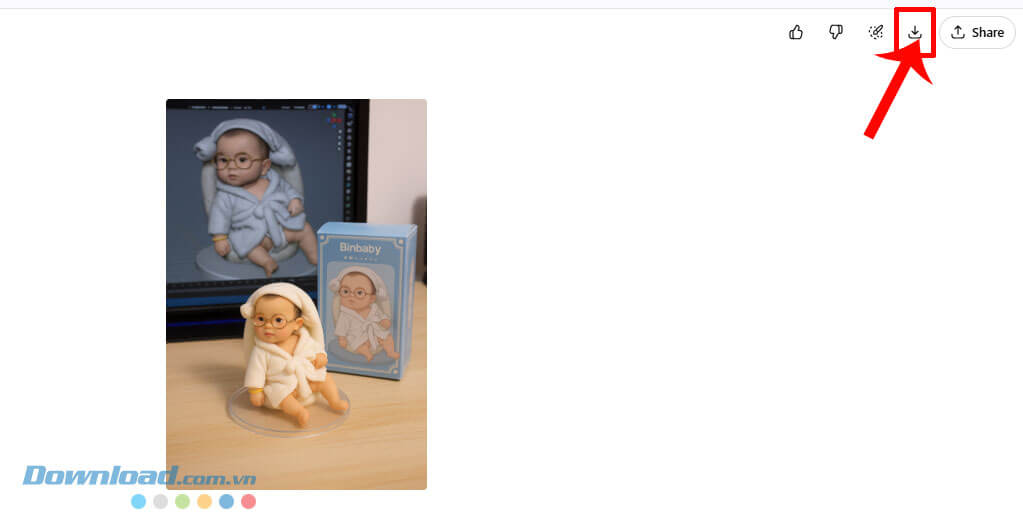
Bước 5: Chờ một lát quá trình tạo ảnh mô hình hoàn tất, sau đó mình có thể tải ảnh về máy của mình.
Chúc các bạn thực hiện thành công!
AI
-

Cách xóa tất cả lịch sử trò chuyện trên ChatGPT
-
Cách tạo sách truyện, truyện tranh bằng AI với Google Gemini
-
Cách thay đổi ngôn ngữ giao diện của Gamma AI
-
Hướng dẫn tạo trang web trên Gamma AI
-
Hướng dẫn dịch tài liệu bằng AI trong Gamma AI
-
Cách tạo nhân vật pixel bằng ChatGPT
-
Meta AI - Vibes & AI Glasses cho iOS
-
RemNote
-
Firebase Studio
-
LM Studio
-
SelfyzAI: AI Video Generator cho Android
-
Notability cho Android